How to transcribe audio or video on iPhone and Android
Updated October 31, 2026
You don't need an app to turn a recording on your phone into text. FreeTranscribe runs the speech-recognition model inside your phone's browser, so it works on iPhone and Android, with no account and no upload. Phones do have less memory and battery than a laptop, and they're stricter about pages running in the background, so a few habits make a big difference. Here's how to get your file in, what to expect, and how to save the result.
Step 1: Get the recording into the browser
Open FreeTranscribe in Safari or Chrome and tap the box that says Drop your video or audio file here. Where the file comes from changes what you tap next.
A video in Photos (iPhone) or Gallery (Android)
On iPhone, choose Photo Library and pick the video. iOS sometimes shows "Preparing" for a moment while it hands the video over. On Android, choose Photos and videos (or your gallery app).
A voice memo or recorder app
On iPhone, open the memo in Voice Memos, tap the … button and choose Save to Files. Back in the browser, tap the box, choose Choose Files (or Browse) and pick the memo. It's an .m4a file, which works directly. On Android, most recorder apps save to a folder you can reach from Files in the browser's file picker, or have a share button that saves to it.
A WhatsApp voice message
Use WhatsApp's share or forward option on the message to save it to your files, then pick it from the browser. Voice messages are .opus files, which FreeTranscribe handles. There's a dedicated walkthrough on the WhatsApp voice message page.
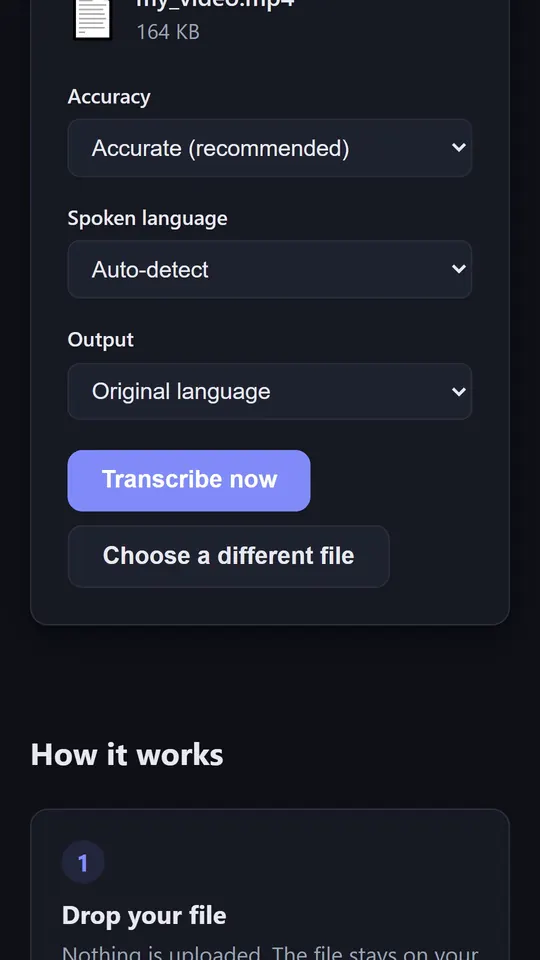
Step 2: Choose settings that suit a phone
- Accuracy: Accurate works on recent phones. On an older phone, or for a long recording, try Fast: it downloads a smaller model and needs less memory. Our accuracy test shows what you give up.
- Spoken language: pick it if you know it. It's slightly more accurate than auto-detect, especially for short clips.
- Output: Original language, or Translate to English if you want English text from another language.
Step 3: Start, and keep the page in front
Tap Transcribe now. The first time, your phone downloads the AI model (tens of megabytes, once; it's cached for next time), so Wi-Fi helps. Then the text starts appearing as it works.
This is the step that trips people up on phones: browsers pause pages you're not looking at. If you switch apps, lock the phone or let the screen turn off, transcription stops until you come back. FreeTranscribe asks the browser to keep the screen awake while it works, but some phones ignore that in low-power mode. So:
- keep the page open in front until it finishes;
- plug in for anything longer than a few minutes, and turn off low-power or battery-saver mode;
- close other heavy tabs and apps so the browser has memory to spare.
Step 4: Save or share the text
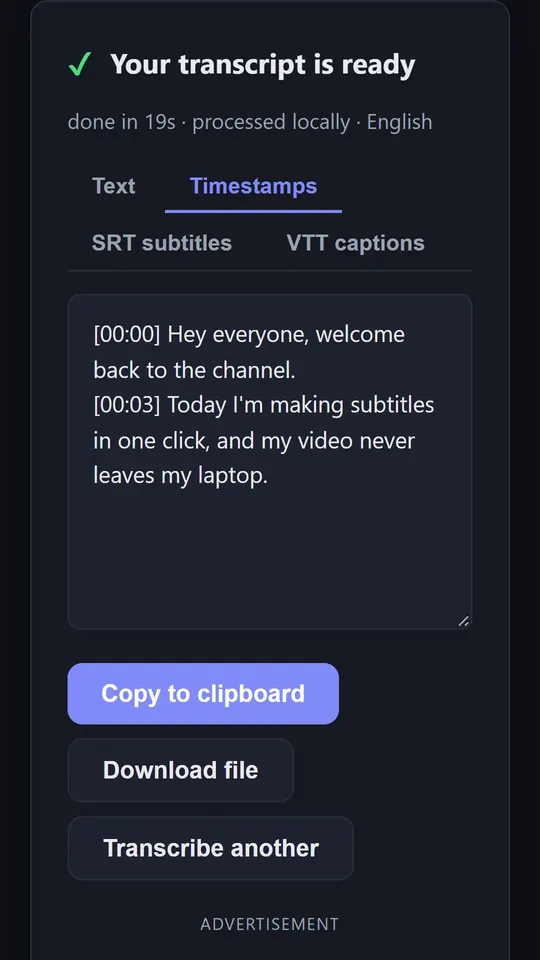
- Copy to clipboard, then paste into Notes, Google Docs, an email or a chat.
- Download file saves the current tab as a file: on iPhone it goes to the Downloads folder in the Files app; on Android, to Downloads.
- Word (.docx) opens in Word, Pages or Google Docs; Print / PDF lets you save a PDF from the share sheet.
- Need subtitles? The SRT subtitles tab gives you a caption file for YouTube or a video editor.
How long can the recording be on a phone?
The tool accepts files up to 2 GB, but a phone runs out of memory sooner than a computer. Short clips, voice memos and typical videos are fine on recent phones. For recordings of an hour or more, a laptop or desktop is more reliable and much faster. If a long file fails with a memory message, try Fast, close other tabs, or move it to a computer.
Video files are mostly picture, and transcription only needs the sound. If a large video won't go through, an audio copy is much smaller: our video to MP3 converter makes one in the browser.
Why use the browser instead of an app?
- Nothing to install and no account, so there's nothing to cancel later.
- Private: the recording stays on your phone. See how to check that a tool doesn't upload your files.
- No length caps or per-minute fees, because the work happens on your phone, not on a paid server.
Open the transcriber on your phone, or read the full step-by-step guide.