SRT vs VTT: which subtitle format should you use?
Updated October 31, 2026
SRT (SubRip) and VTT (WebVTT) are the two subtitle formats you'll meet most. Both are plain text files that pair lines of dialogue with start and end times, and for everyday captions they carry the same information. The differences are small but they decide where a file will work, so here's what they look like, what actually differs, and which one to pick.
The short answer
- Captions for a video on your own website (an HTML
<video>player): use VTT. Browsers only read WebVTT. - Uploading to a platform or importing into an editor: use SRT unless the platform asks for VTT. It's the most widely accepted format.
- Not sure: make both. They come from the same transcript, so it costs nothing.
What the files look like
Here's the same caption in each format. This is SRT:
1
00:00:00,000 --> 00:00:03,000
OK, quick update on the launch.

2
00:00:03,000 --> 00:00:08,000
The landing page is finished and
the new pricing goes live on Monday.
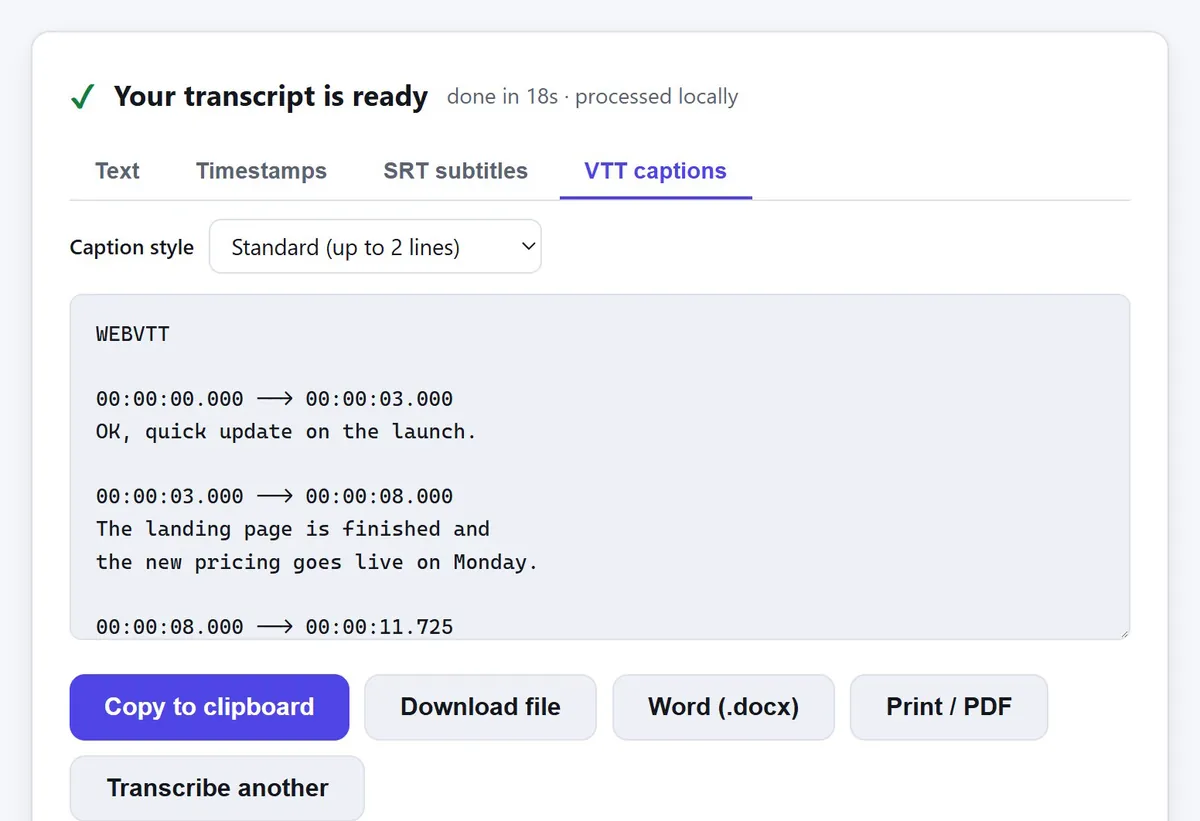
And this is WebVTT:
WEBVTT

00:00:00.000 --> 00:00:03.000
OK, quick update on the launch.

00:00:03.000 --> 00:00:08.000
The landing page is finished and
the new pricing goes live on Monday.
At a glance: VTT starts with a WEBVTT line, uses a full stop before the milliseconds instead of a comma,
and doesn't need the caption numbers.
The differences that matter
| SRT | WebVTT | |
|---|---|---|
| First line | Starts straight in with caption 1 | Must start with WEBVTT |
| Milliseconds | Comma: 00:00:03,000 | Full stop: 00:00:03.000 |
| Caption numbers | Required | Optional (can be any ID, or none) |
| Hours in times | Always written | Can be left out under an hour (00:03.000) |
| Positioning | None in the format itself | Cue settings such as line, position and align |
| Styling | No official styling; many players honour <i> and <b> | Bold, italics and classes, styled with CSS on websites |
| Extras | None | NOTE comments; also used for chapter and metadata tracks |
| Text encoding | Not fixed by the format (use UTF-8) | Always UTF-8 |
For plain dialogue captions, which is what transcription produces, none of the extra VTT features come into play. The practical difference is simply which programs accept which file.
Which format each platform expects
| Where the captions go | Use |
|---|---|
Video on your own website (HTML <track>) | VTT only |
| YouTube | Either |
| Vimeo | Either |
| Facebook video | SRT |
| LinkedIn video | SRT |
| VLC and most desktop media players | Either |
| Video editors (Premiere Pro, DaVinci Resolve) to style or burn in captions | SRT is the safe choice |
Platforms change their upload options from time to time, so if an upload is rejected, check that platform's help page for its current list of formats.
Using VTT on a website
Add the file to your video with a <track> element:
<video controls src="talk.mp4">
  <track kind="captions" src="talk.vtt" srclang="en" label="English" default>
</video>
Serve the file from the same site as the page (or with CORS headers allowing it), ideally with the
text/vtt content type. If captions don't appear, the browser's developer console usually says why.
Converting between them
Renaming .srt to .vtt isn't enough: the header and the millisecond separators have to
change. Our free converters do it in the browser: SRT to VTT and VTT to SRT.
If you're making captions from a recording in the first place, FreeTranscribe gives you both formats
from the same transcript, in the SRT subtitles and VTT captions tabs.