How to add subtitles to a YouTube video
Updated October 31, 2026
YouTube writes automatic captions for most videos, but they're often rough: names come out wrong, sentences run together, and nothing is punctuated the way you'd write it. Uploading your own subtitle file fixes that in a few minutes. Accurate captions help people who are deaf or hard of hearing, people watching with the sound off, and viewers who follow along better when they can read. This guide shows the whole route: make an SRT file from your video, check it, upload it in YouTube Studio, and tidy it up.
What you need
- The video file. If you still have the file you uploaded, use that. If not, you can download your own videos from YouTube Studio: open Content, hover over the video, open the three-dot menu and choose Download.
- A free way to make the subtitle file. This guide uses FreeTranscribe, which runs in your browser, so the video isn't uploaded anywhere to be transcribed.
- Access to YouTube Studio for the channel the video is on.
Step 1: Make an SRT file from your video
- Open FreeTranscribe and drop your video onto the box (or click it to choose the file).
- Leave Accuracy on Accurate. Set Spoken language to the language of the video if you know it; auto-detect works, but choosing it yourself avoids a wrong guess on a quiet or musical intro.
- Keep Output on Original language (see below for English subtitles on a non-English video).
- Click Transcribe now and keep the tab open until it finishes.
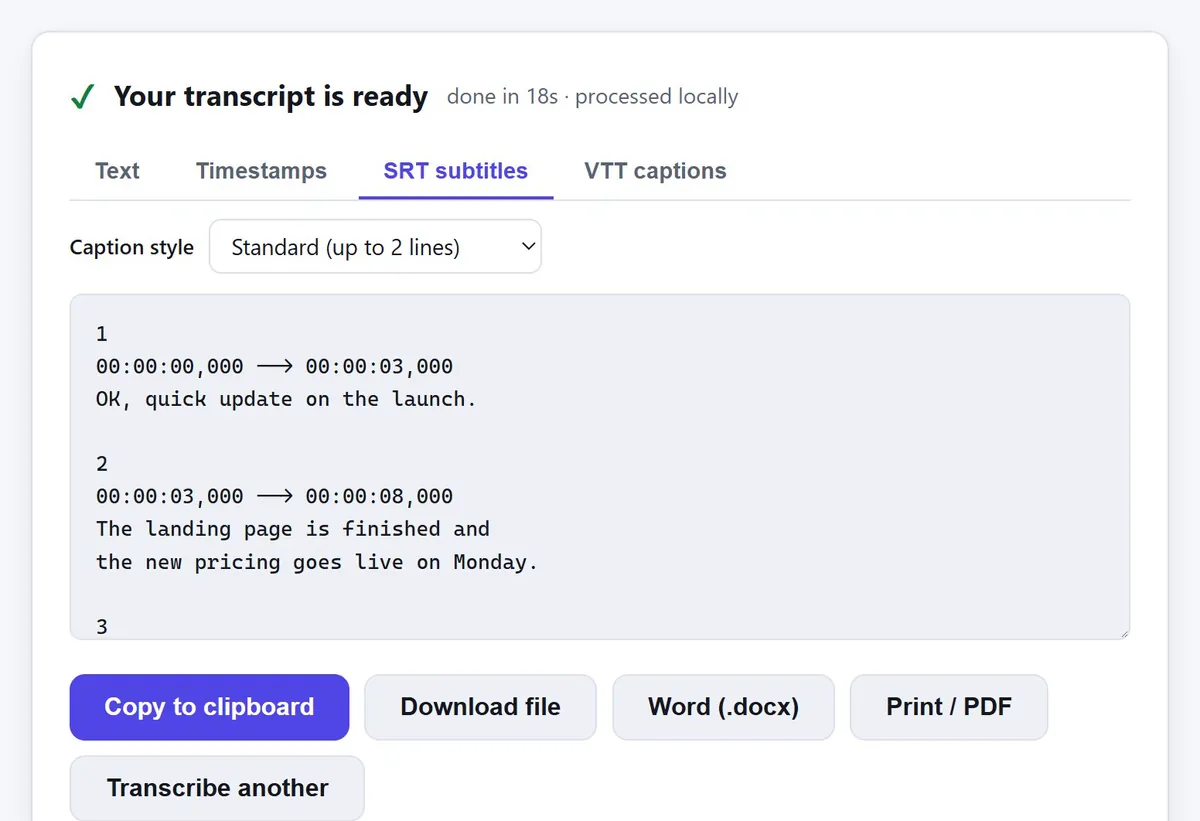
- Open the SRT subtitles tab. For normal videos keep the caption style on Standard (up to 2 lines); for Shorts, Short gives a few words at a time. Then click Download file.
Step 2: Check the text before you upload
Speech recognition is good but not perfect, and the mistakes cluster in predictable places: people's names, brand names, acronyms and technical terms. Open the .srt file in any plain-text editor (Notepad, TextEdit in plain-text mode, VS Code) and skim the text lines. Fix words, but leave the structure alone:
- keep the caption numbers and the
00:00:01,000 --> 00:00:04,000lines exactly as they are; - keep the blank line between captions, because that's how players tell where one caption ends;
- save it as plain text with the
.srtextension (our files are already UTF-8, which YouTube expects).
You can also do this later in YouTube's own subtitle editor, which lets you watch the video while you type. The text editor is quicker for long videos.
Step 3: Upload the SRT in YouTube Studio
- Go to studio.youtube.com and sign in.
- Choose Subtitles in the left menu, then click the video.
- If YouTube asks for the video's language, set it and confirm.
- Click Add language if the language you need isn't listed, then click Add under Subtitles for that language.
- Choose Upload file, select With timing, click Continue, and pick your .srt file.
- Play through a few spots in the editor, then click Publish.
Your track appears as its own option in the video's captions menu. YouTube's automatic track stays available as a separate "(auto-generated)" option.
Only have a plain transcript? YouTube can time it for you. Copy the Text tab instead, and in step 5 choose Upload file then Without timing (or Auto-sync and paste it). YouTube lines the words up with the audio. Uploading a timed SRT is more reliable for long videos and fast talkers.
English subtitles for a video in another language
To add English captions to, say, a Spanish video, transcribe it with Output set to Translate to English. The AI listens to the Spanish and writes English text with timings, and the SRT tab works the same way. Upload it as an English subtitle track. You can upload the original-language SRT as a second track too, so viewers can pick either. There's more detail in our page on translating a video into English subtitles.
Make captions easy to read
Good captions are short, steady and in sync. Broadcasters' subtitle guidelines broadly agree on a few rules of thumb, and the Standard style follows them:
- Two lines at most, around 42 characters per line, so the eye can take a caption in at a glance.
- Break at natural pauses, not in the middle of a phrase like "the new / pricing".
- Leave them up long enough to read. Very short captions that flash past are worse than slightly long ones.
- For Shorts and vertical video, fewer words at a time works better on a small screen. That's what the Short style is for. If you burn captions into the picture instead of uploading them, most editors (Premiere Pro and DaVinci Resolve, for example) can import an SRT and style it.
Fixing common problems
- The captions are early or late by the same amount throughout
- This usually happens when the video was trimmed after the file was made (a cut intro, for example). Shift every caption by the same number of seconds with the subtitle timing tool, then upload the fixed file.
- YouTube says the file isn't valid
-
Check the extension is
.srt(not.srt.txt), that every caption still has its time line, and that a blank line separates captions. Editing in a word processor can break this; use a plain-text editor. - Accents or symbols show up as strange characters
- The file was re-saved in a different encoding. Save it again as UTF-8.
- You'd rather use VTT
- YouTube accepts WebVTT as well, and FreeTranscribe offers it in the VTT captions tab. See SRT vs VTT for when it matters.
Questions
Does it cost anything?
No. Making the SRT with FreeTranscribe is free with no account, and adding subtitles in YouTube Studio is free.
How long does transcription take?
It runs on your own computer, so it depends on the device and the length of the video. The first run also downloads the AI model once. A laptop usually gets through a typical video in a few minutes; the page shows progress and an estimate while it works.
Can I do this for someone else's video?
Only the channel owner can add subtitles in YouTube Studio. Downloading other people's videos also breaks YouTube's terms, so this route is for your own videos (or ones you manage for a client).
Ready? Make your subtitle file now, or read how to create SRT subtitles from a video for more on caption styles.